Having trouble logging in? Here are the most common issues and their solutions:
1. Trying to reset your password and not receiving an email?
Most of our clients leverage "social" logins or single sign-on with their main website; they do not allow for the creation of a "local" login. When accessing your certification site, you should be brought to a page with login options similar to these:
If you see a page that allows you to change your password or create an account, you’ve likely been directed to the incorrect page.
To address this issue:
Re-enter the site URL, making sure there is nothing additional at the end of the address. It should look like this: https://[OrganizationAcronym].hub.cloudgeneration.com. Then choose the desired login option and follow the steps in the login guide.
2. After entering your email address under "Claim Your Account," you aren't receiving the verification email.
a. Check your spam, junk or "Other" folder (in Microsoft Outlook). Initial emails often end up there.
b. Ensure the email address you are entering is the address on file with your certification organization, NOT the email address associated with your authentication method. The address you enter under "Claim Your Account" must exactly match the address we have on file.
3. You receive the "Claim Your Account" page using the same email address to log in as we have on file.
a. When you see the "Claim Your Account" message, this indicates there is a mismatch between the address you are using to log in (e.g. the one associated with your Microsoft, LinkedIn or Google account) and the email address we have on file for you.
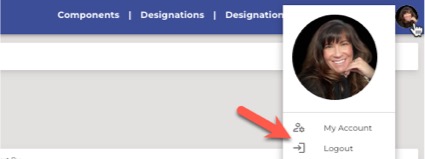
b. If you've previously tried to log in with a different email address, there may be a persisting login session causing the issue. On the page where you see the message "Claim Your Account" check the upper right corner for a profile avatar. Click on the avatar and select "Logout."
c. Clear Browser Cookies
To ensure a clean login attempt, please clear your browser cookies. Here's how:
For Chrome:
1. Click on the three dots in the top right corner of your browser.
2. Go to "Settings."
3. Scroll down and click on "Privacy and security."
4. Click on "Clear browsing data."
5. Select "Cookies and other site data" and click "Clear data."
For Firefox:
1. Click on the three horizontal lines in the top right corner.
2. Go to "Options."
3. Select "Privacy & Security."
4. Scroll down to "Cookies and Site Data" and click "Clear Data."
For Safari:
1. Click on "Safari" in the top left corner.
2. Go to "Preferences."
3. Select the "Privacy" tab.
4. Click on "Manage Website Data" and then "Remove All."
d. Retry Logging In:
After clearing cookies, close your browser, reopen it, and try logging in again at (https://xxxx.hub.cloudgeneration.com/).
e. Try a Different Browser:
If the issue persists, please try using a different browser to ensure a clean start.